Fiidom Pricing Rule is a simple template you can configure to automatically calculate product prices and apply it to products when they are pushed to your store.
The pricing rule includes 2 types: manual setup and AI recommendation. You can check below to learn how you can take advantage of them to customize your pricing rules.
1. Manual setup allows you to use a fixed number to add or multiply by your product cost:
- Selling Price is the final price a customer pays for a product, which is set by the retailer to be higher than the total cost.
For example, if the product cost is 10 USD, the price will be set to 12 or 20 USD - depending on whether you add 2 to the cost or multiply it by 2.
- Compared-at Price is the original, higher price you display before the discount. It might also be called "Original Price" or vary by sales channel.
For example, if the product cost is 10 USD, the Compare-at price will be set to 15 or 50 USD - depending on whether you e add 5 to the cost or multiply it by 5.
2. AI recommendation is a new AI-powered feature that gives you ready-to-use price suggestions without any manual calculations.
How to set up the pricing rule
There are two ways: set up selling for all products at once, or set it individually for each product during the push to the store.
Method 1: Set up the pricing rule for all products at once
Steps
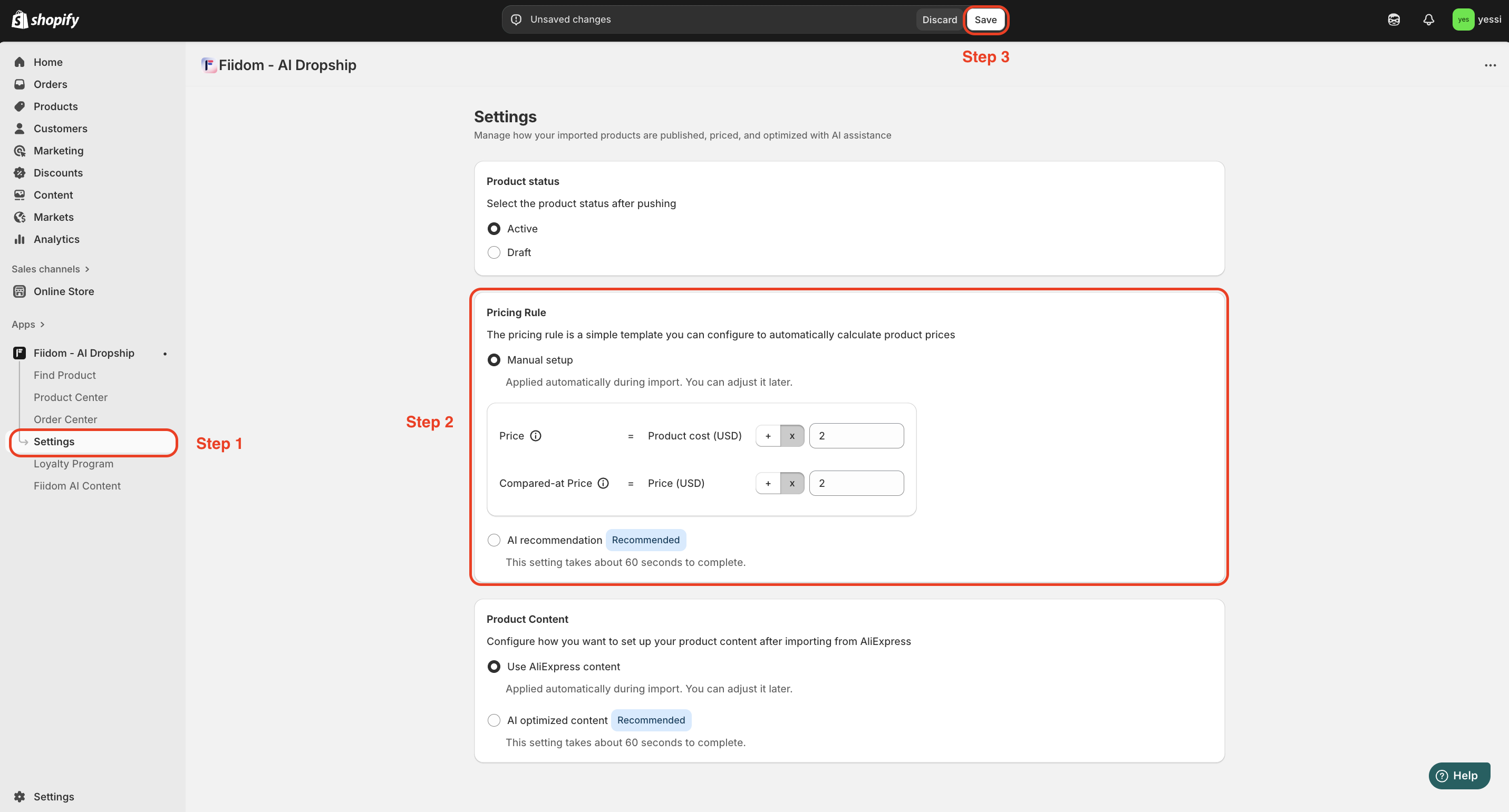
1. Login to Fiidom > Settings.
2. In the Pricing Rule part, Manual setup is selected by default. You can keep this or select the AI Recommendation option by clicking its radio button to let AI suggest a pricing formula.
If you keep Manual setup option: adjust the values by adding or multiplying with a fixed number in the Price column and Compare At Price column,
3. Click Save.
Method 2: Set up the pricing rule for each product
Steps
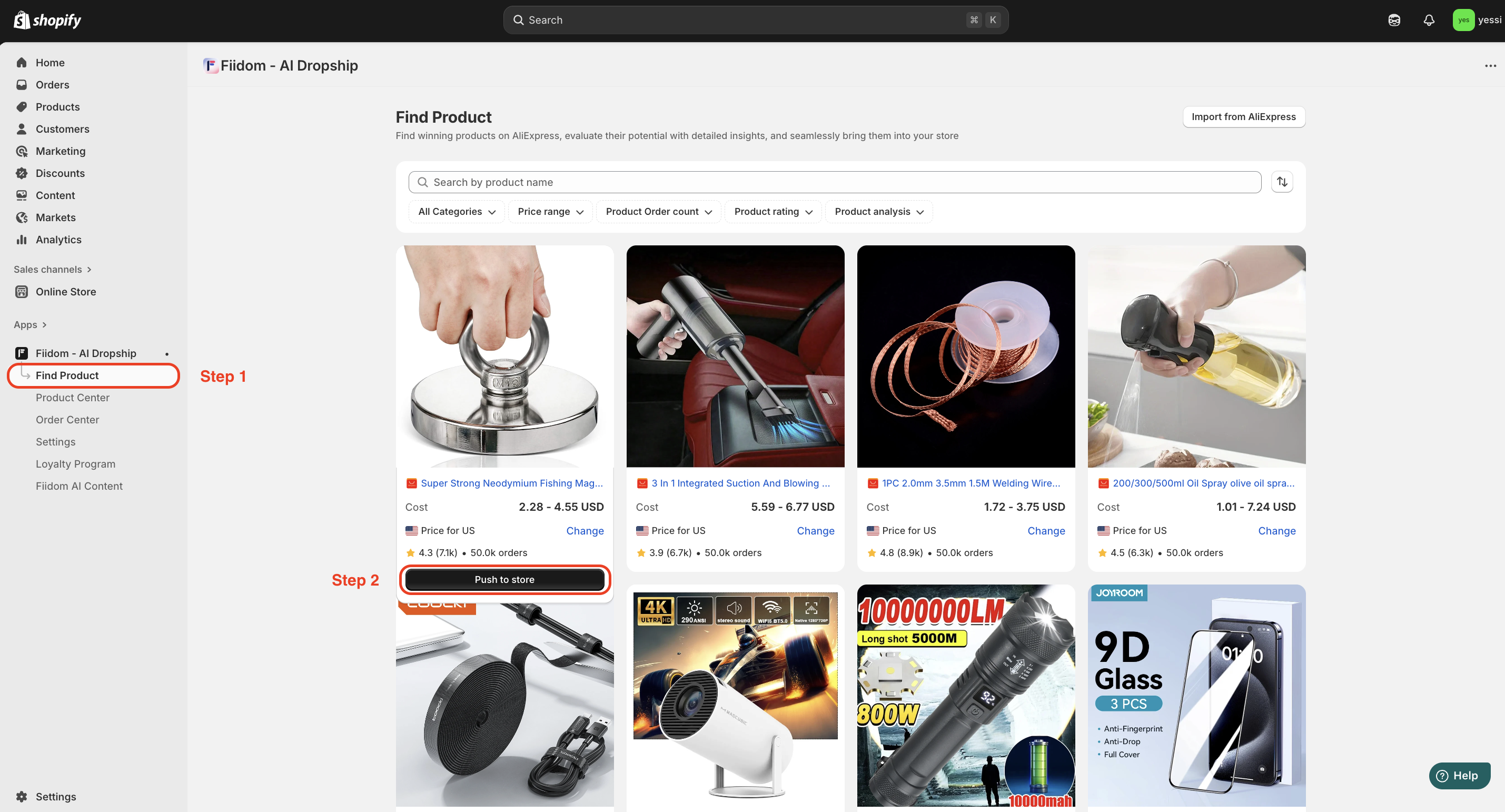
1. Login to Fiidom > Find product.
2. Hover over a specific product card > Click Push to store.
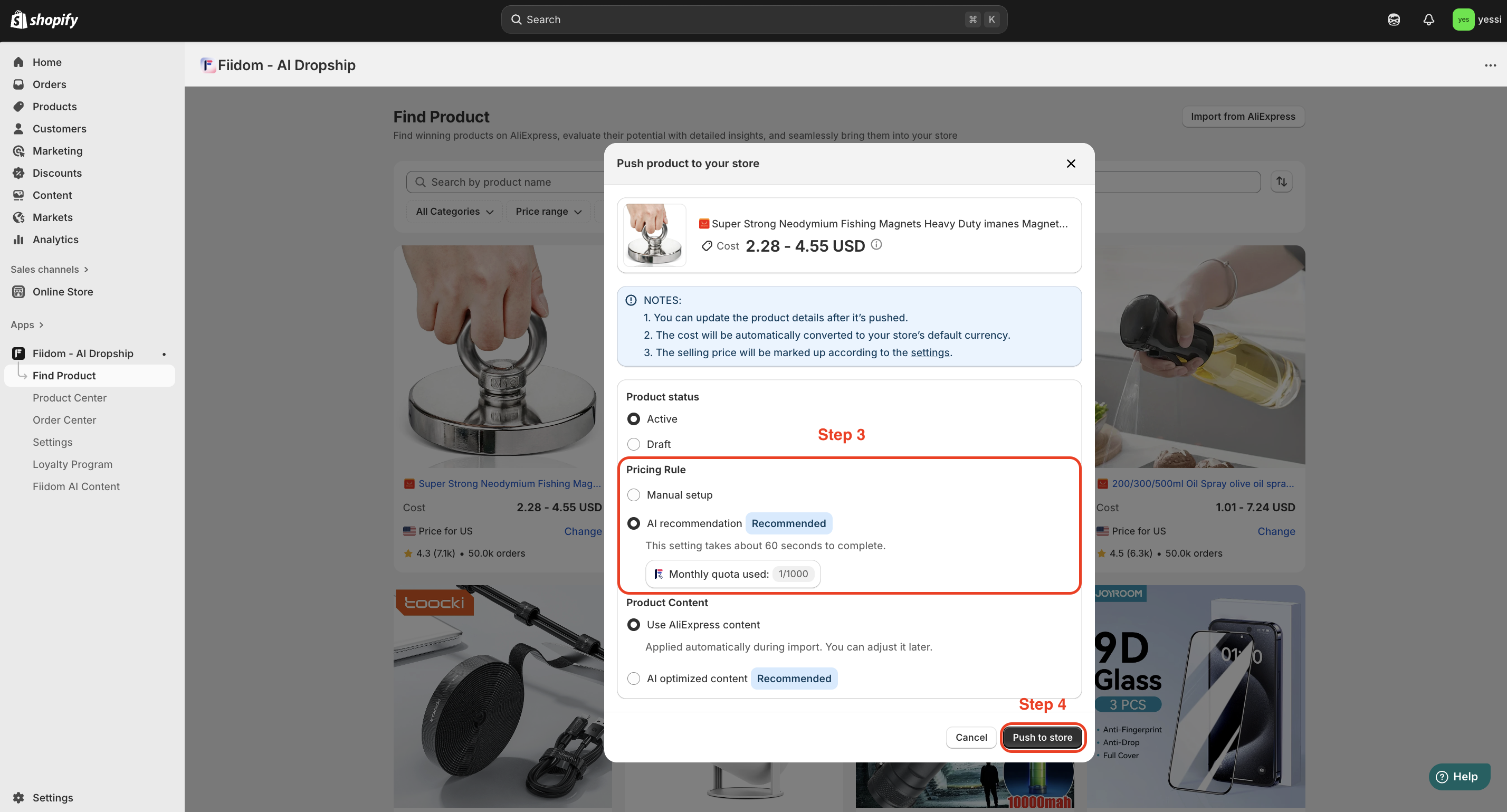
3. In the Pop-up, navigate to the Pricing Rule part. Manual setup is selected by default. You can keep this or select the AI Recommendation option by clicking its radio button to let AI suggest a pricing formula.
If you keep Manual setup option: adjust the values by adding or multiplying with a fixed number in the Price column and Compare At Price column.
4. Click Push to store.
Was this article helpful?
That’s Great!
Thank you for your feedback
Sorry! We couldn't be helpful
Thank you for your feedback
Feedback sent
We appreciate your effort and will try to fix the article