Struggling to write compelling store product content that actually converts? No worries, with Fiidom’s AI Content Optimization, you can boost conversions and optimize your listings using high‑converting copy tailored to your brand.
What is AI Optimization?
Fiidom’s AI Content Optimization feature helps you transform existing content into SEO-friendly, high-converting copy across products, collections, blog posts, and pages.
Using advanced AI-powered algorithms, Fiidom generates optimized content in seconds. Whether your copy feels outdated, inconsistent, or underperforming, Fiidom makes it easy to rewrite content that better fits your tone, target audience, and sales goals.
What makes Fiidom unique is its customization options. You can set the tone, style, and feeling of your content, ensuring brand identity and consistency across all listings.
How to optimize existing product
Product descriptions and titles are essential to your sales conversion because first impressions matter. Follow the step-by-step guide to learn how to optimize your existing product content.
Steps
1. Login to Fiidom > AI Content Optimization.
2. The Product part is selected by default. Click the product name you want to optimize.
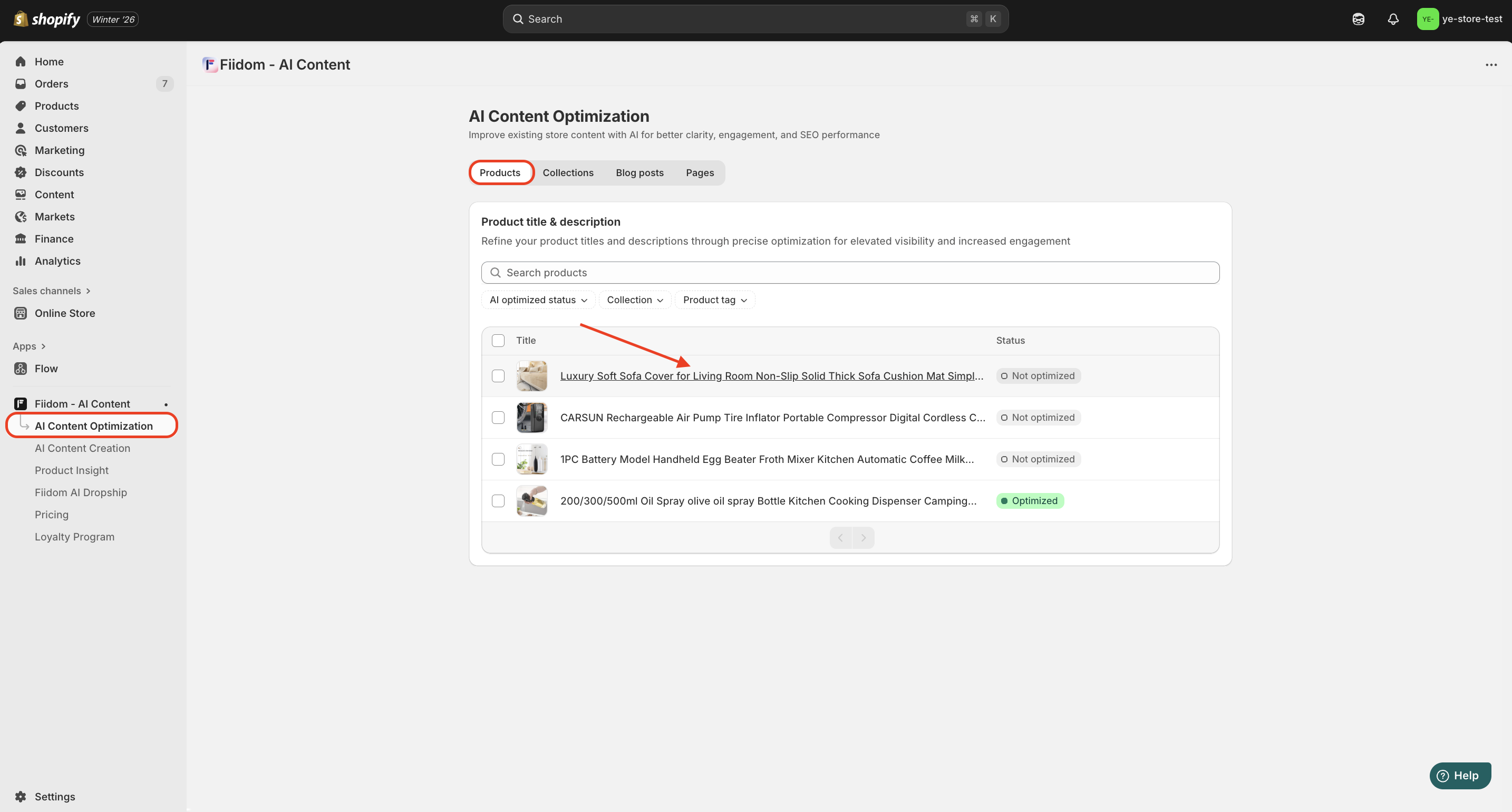
3. In the Customization window, select one of the predefined tones, or add a custom tone to use > Click Optimize.
- Wait for the system to generate the first version of your suggested content.
4. Optional: You might want to use the following steps to regenerate and review several versions of a product description before choosing one as a draft:
- To refresh the suggested content, click Not use this version.
- To change the tone of the generated content, select a different tone option, and then click Optimize.
5. Check a new version > Click Save.
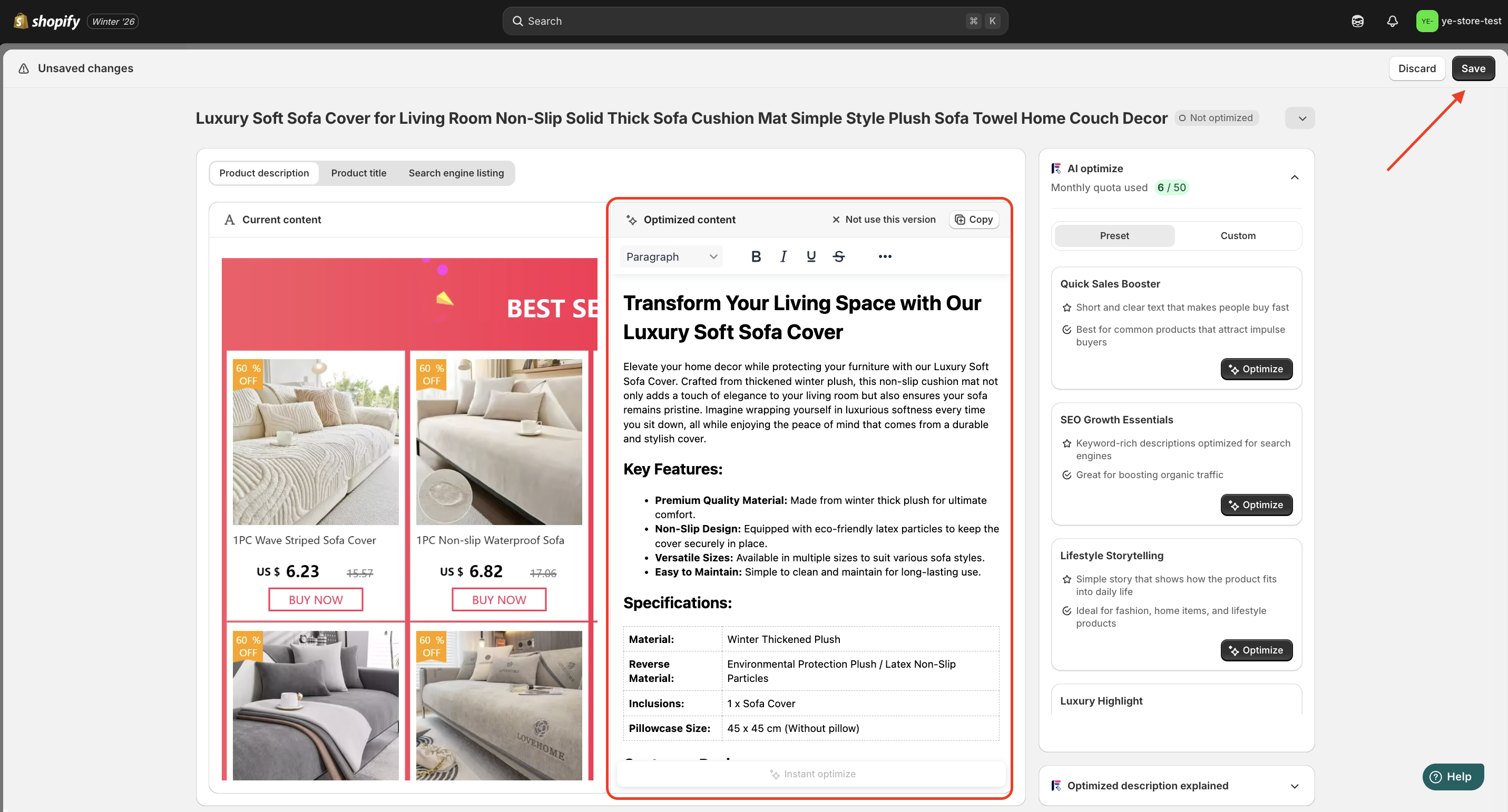
Once completed, the status will change from Not optimized to Optimized only for products that have been successfully optimized.
How to optimize existing collections
In Shopify, collections are groups of products that help organize your store and make it easier for customers to find related items. They’re ideal for showcasing promotions, seasonal items, or product categories. Follow the steps below to learn how to optimize your collections.
Steps
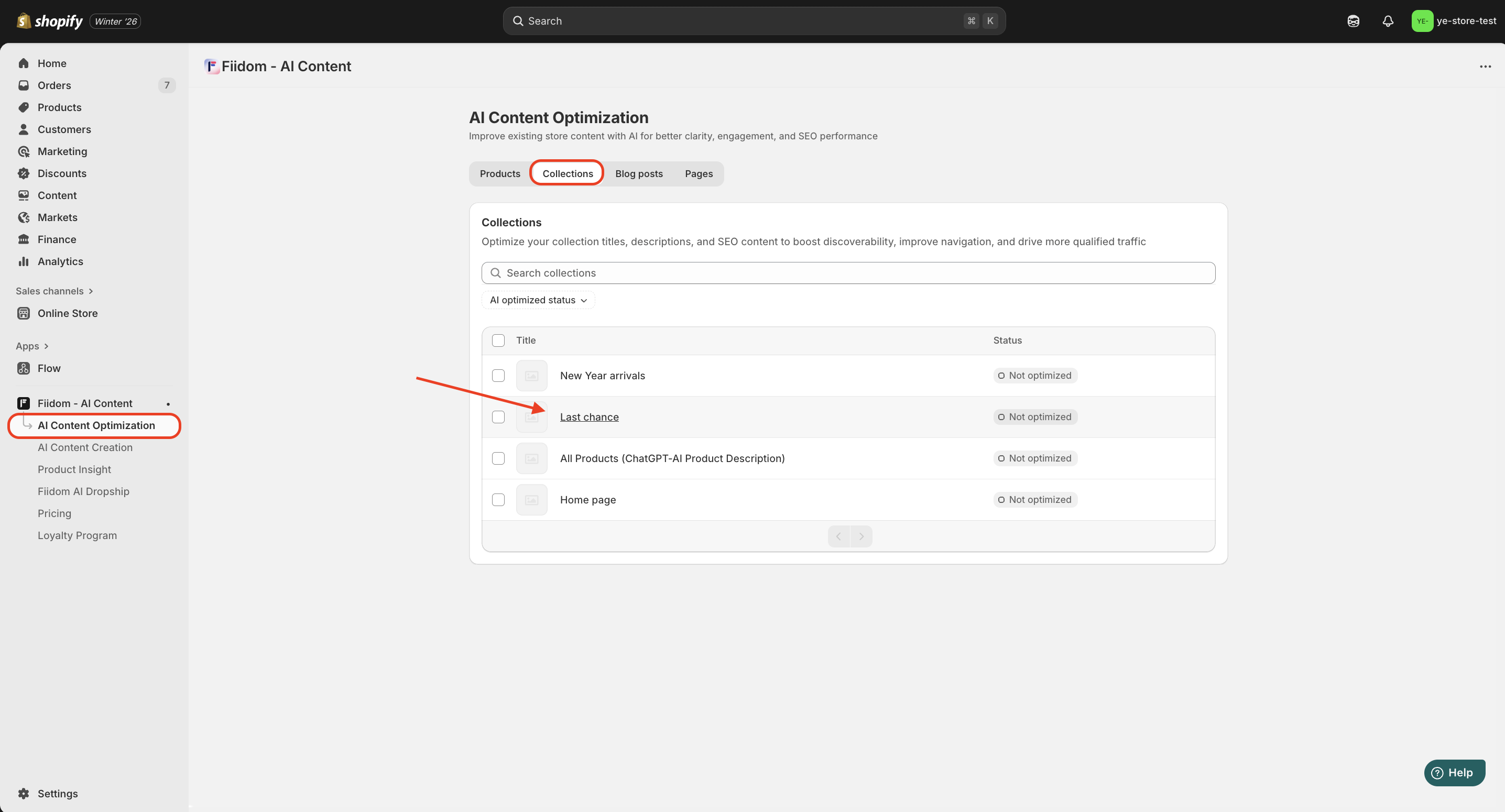
1. Login to Fiidom > AI Content Optimization.
2. Click Collections > Select a collection page that needs improvement.
3. In the Customization window, select tones, and add special instructions to tailor the generated content to your brand > Click Optimize.
- Wait for the system to generate the first version of your suggested content.
4. Review the AI-generated content carefully > Click Save for new changes.
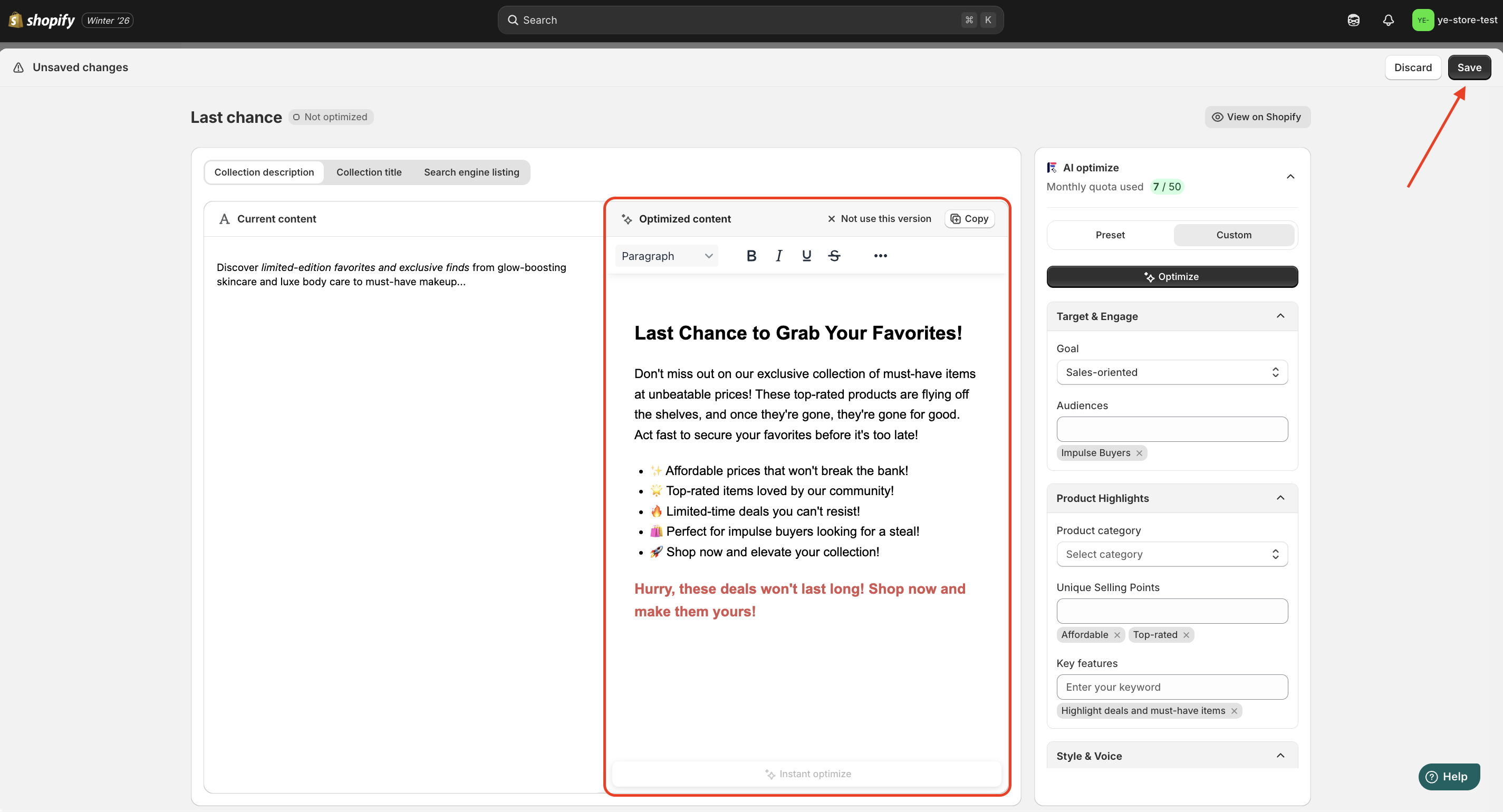
Once done with this, the status will change from Not optimized to Optimized only for each collection that has been successfully optimized.
How to optimize existing blog posts
Blog posts in Shopify allow you to share updates, stories, and information about your business or products. The guide below shows you how to evaluate each post to keep your content fresh and engaging.
Steps
1. Login to Fiidom > AI Content Optimization.
2. Click Blog posts > Select a collection page that needs improvement.
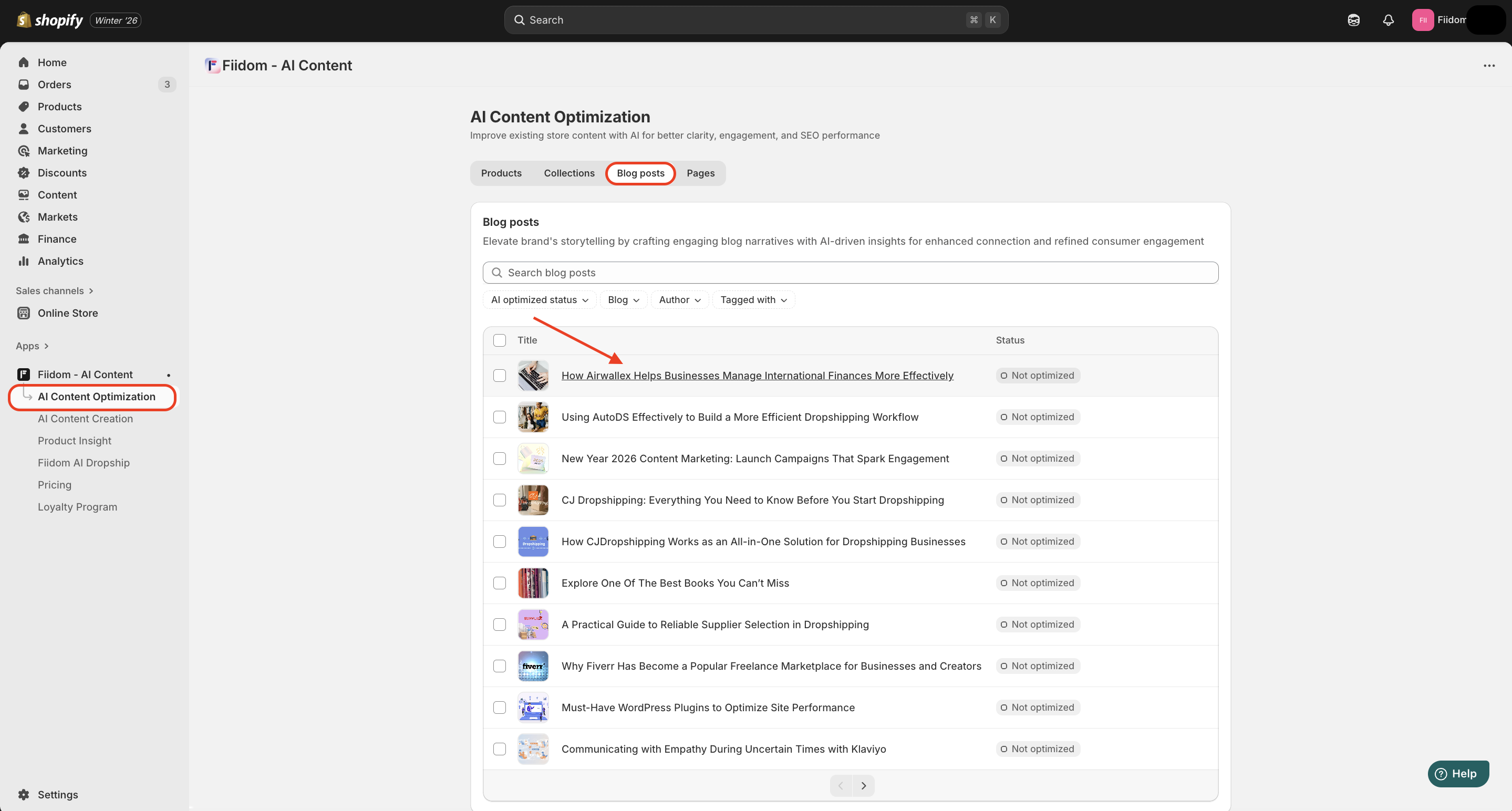
3. In the Customization window, select tones, and add special instructions to tailor the generated content to your brand > Click Optimize.
- Wait for the system to generate the first version of your suggested content.
4. Review the AI-generated content carefully > Click Save for new changes.
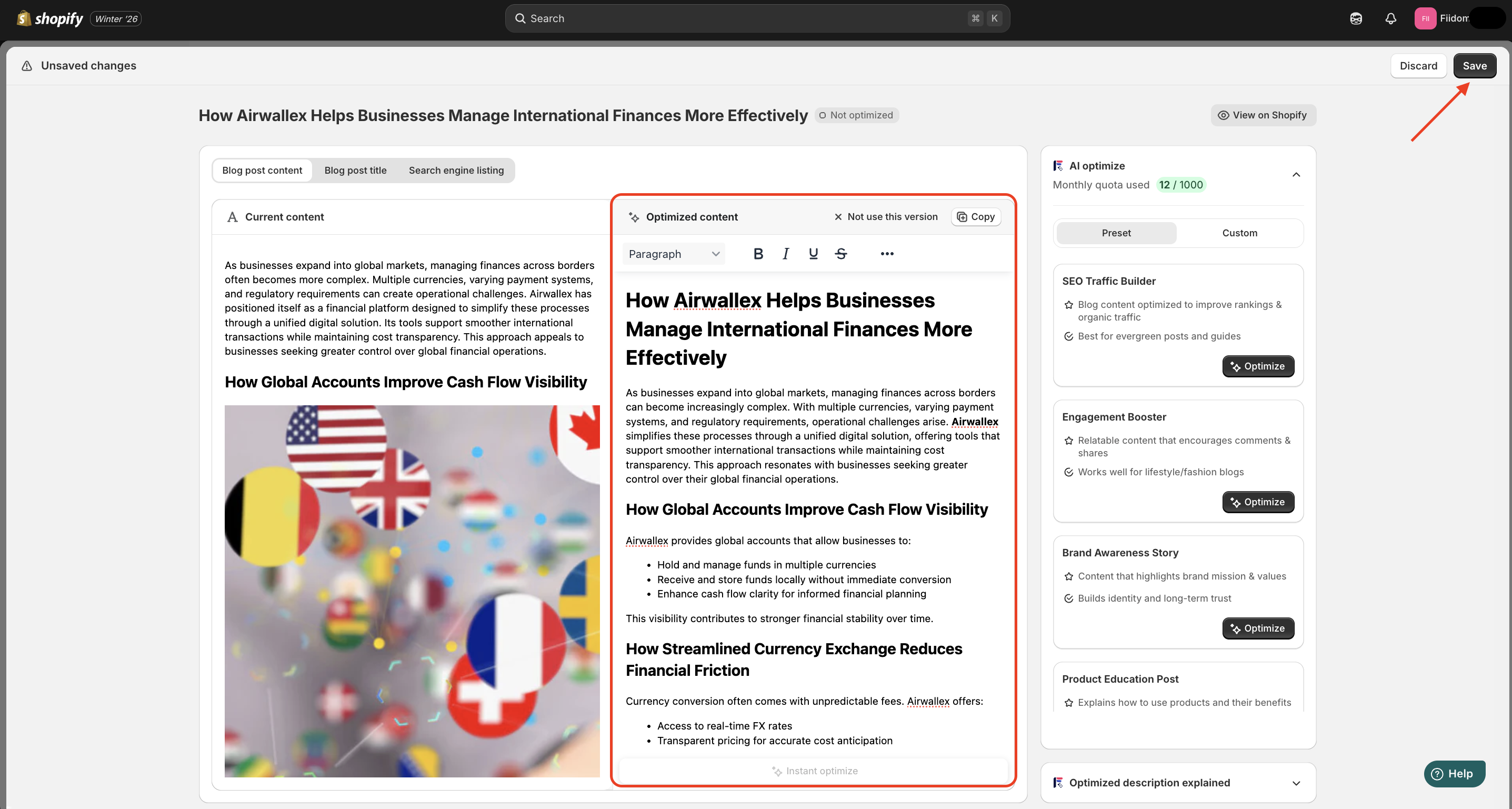
Once done with this, the status will change from Not optimized to Optimized only for each blog post that has been successfully optimized.
How to optimize existing pages
In Shopify, "pages" refer to the static content pages you can create for your store, such as About Us, Contact, FAQ, or any other informational content you want to provide to your customers. Here’s how you can optimize each page for better customer engagement.
Steps
1. Login to Fiidom > AI Content Optimization.
2. Click Pages > Select a collection page that needs improvement.
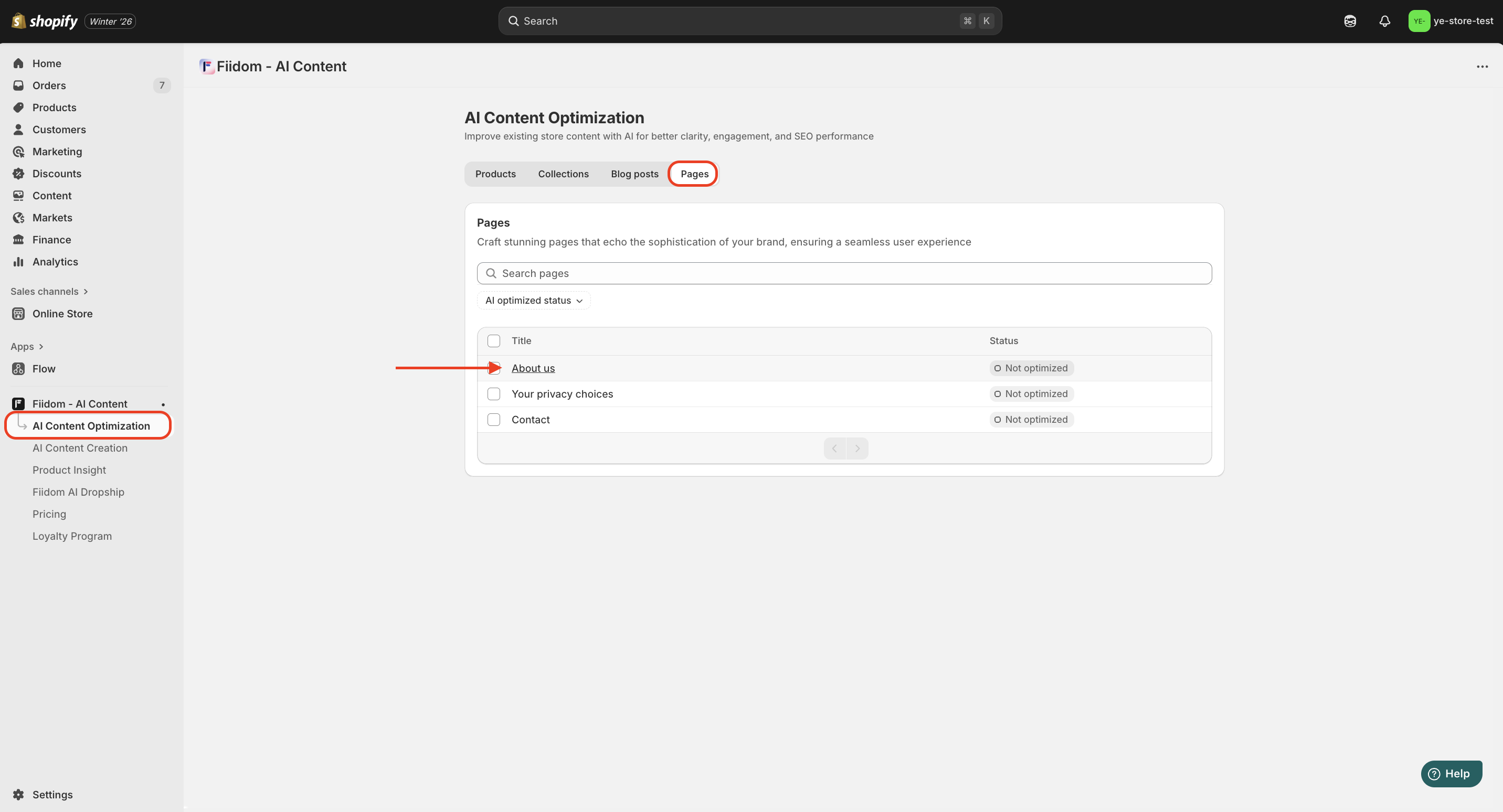
3. In the Customization window, select tones, and add special instructions to tailor the generated content to your brand > Click Optimize.
- Wait for the system to generate the first version of your suggested content.
4. Review the AI-generated content carefully > Click Save for new changes.
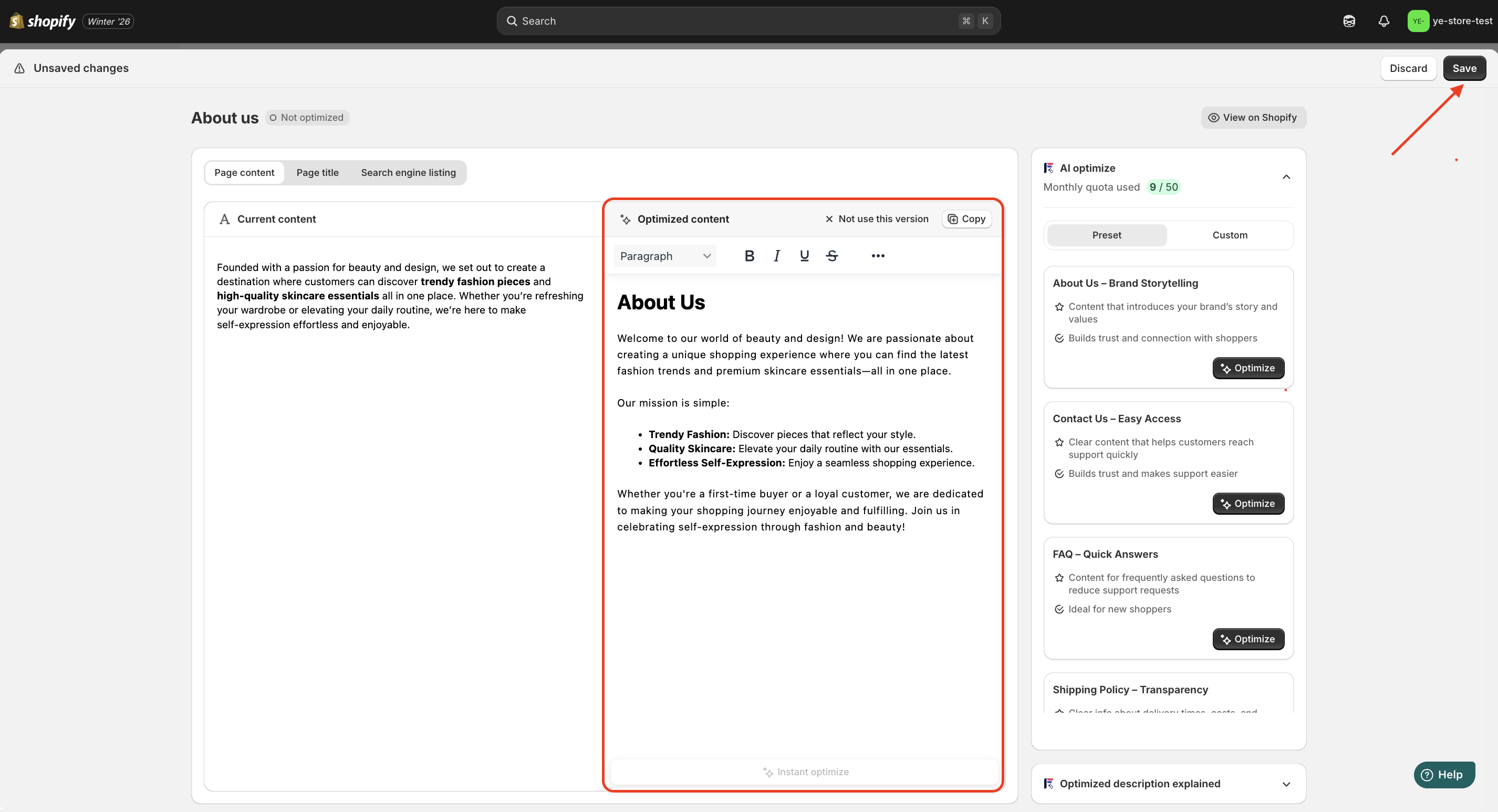
Once done with this, the status will change from Not optimized to Optimized only for each page that has been successfully optimized.
Should you need any further information, please do not hesitate to contact us directly at suppot@fiidom.com
Was this article helpful?
That’s Great!
Thank you for your feedback
Sorry! We couldn't be helpful
Thank you for your feedback
Feedback sent
We appreciate your effort and will try to fix the article